How to see yourself at 80 from one photo
Use a clear portrait with one face, even lighting, and the eyes, nose, mouth, jaw and hairline easy to see. Then open the free demo, upload or take the photo, and select 80 as the target age. The demo gives you one limited watermarked preview without requiring an account.
If you want to continue, the full Web App lets you generate additional ages and download full results. One generated age uses one credit, so an age-80 image counts as one generation.
1
Upload a clear portrait
Choose a sharp image where your face is easy to read.
2
Choose age 80
Set 80 as the target age for the transformation.
3
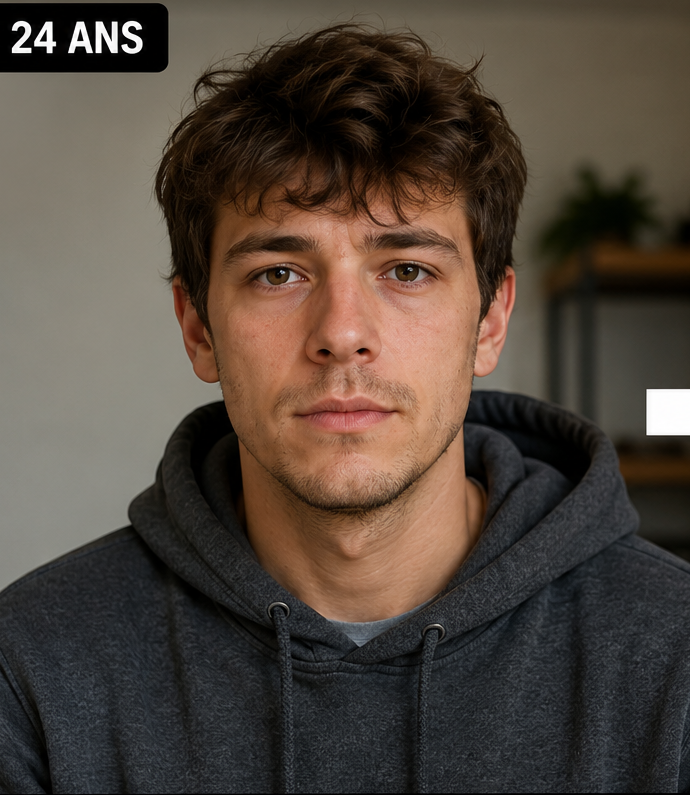
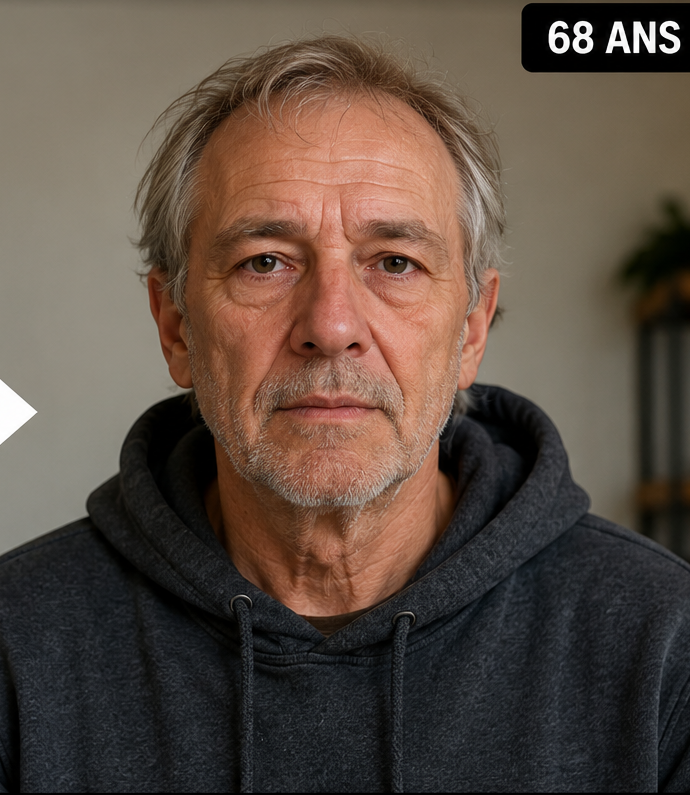
Compare before and after
Check whether the older portrait still looks recognizably like you.
What should an age-80 AI portrait preserve?
A dramatic aging effect is not automatically a good result. The most convincing image is usually the one that changes age-related appearance without replacing the person. Pay attention to the shape and spacing of the eyes, the relationship between the nose and mouth, the chin, jaw, cheek structure and any distinctive asymmetry you recognize in the original.
Older-age cues may include changes in skin texture, facial volume and hair colour, but the important question is whether those changes sit on top of the same identity. If the result looks like a relative rather than you, regenerate from a clearer source photo or compare a smaller age step first.
Why age 80 is a useful target
Age 80 creates a large enough visual change to make the before-and-after comparison interesting, while still being a concrete age that is easy to compare with age 60 or 90. For many people, a three-point sequence such as 60 → 80 → 90 is more informative than one extreme transformation because it shows whether the same face remains consistent across several stages.
You can also use the same source portrait for every target age. Keeping the source image fixed removes one variable and makes it easier to judge whether the progression feels coherent.
How to judge whether the result still looks like you
Look first at identity, not wrinkles. Compare the eye region, nose, mouth width, jawline and overall facial proportions. Then look at the age effect. A good result should feel like an older version of the original person rather than a generic older face pasted onto the image.
Expression matters too. A large change in smile, eye openness or head angle can make the person seem different even when the underlying facial structure is close. For the cleanest comparison, start with a neutral or natural expression and avoid heavy beauty filters on the source image.
Age 60, 80 or 90: which should you try?
Age 60 is useful for a more moderate future-self preview. Age 80 gives a stronger long-range transformation. Age 90 pushes the age gap further and is better treated as a creative interpretation because uncertainty increases as the requested transformation becomes more extreme.
If your main goal is to see a believable progression, generate more than one target age and compare the sequence. If your goal is a single dramatic before-and-after image, age 80 is often a strong middle ground.
Questions people ask about this AI age preview
Can AI really show exactly what I will look like at 80?
No. The image is a generative simulation, not a scientific or medical prediction. Real aging depends on genetics, health, environment, lifestyle and many future events that one photo cannot know.
Can I choose exactly age 80?
Yes. Face Aging Studio supports target ages up to 100, so you can select 80 directly.
Is there a free way to try it?
Yes. The free demo provides one limited watermarked preview without an account.
What photo gives the best age-80 result?
Use one clear, sharp portrait with the full face visible, balanced lighting and minimal obstruction from sunglasses, masks or heavy filters.
Can I compare age 80 with other ages?
Yes. In the full Web App you can generate several target ages from the same portrait and build an age-progression sequence.