How to use the old face generator
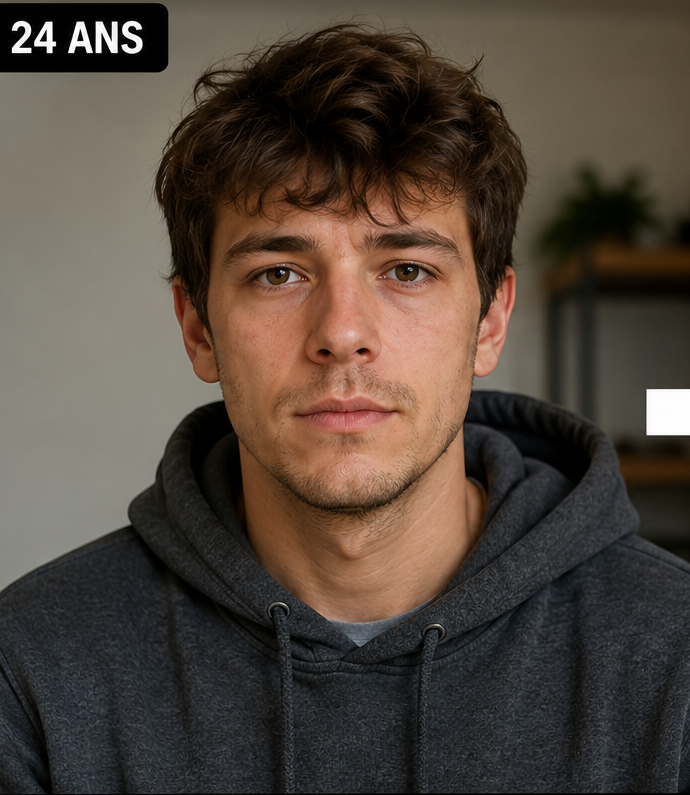
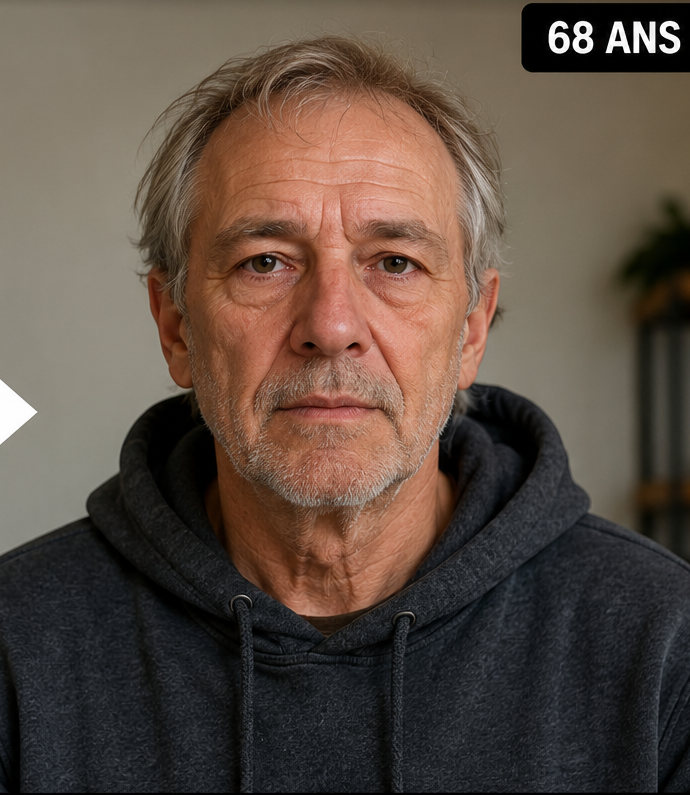
The workflow is intentionally simple: start with one clear portrait, choose the age you want to visualize, generate the result, and compare it with the original. You do not need to write a prompt or manually add wrinkles, grey hair or texture.
The free demo is designed for the first test. It offers one watermarked preview without an account. If the result is useful, the full Web App uses credits for continued generations and lets you download the full results.
1
Add one portrait
A single clearly visible face gives the model the cleanest input.
2
Pick a target age
Choose a specific future age rather than asking for “old” in general.
3
Review identity
Check that the person still looks like the same individual before focusing on the aging effect.
Old face generator vs a simple aging filter
The terms are often used interchangeably, but there is a useful distinction. A simple filter may apply one fixed old-age effect. An age-progression generator lets you ask for a specific age, which makes it possible to create separate versions at 60, 80 or 90 and compare them as a sequence.
That age control is valuable because “make me old” can mean very different things. Someone who wants a subtle mature portrait does not need the same transformation as someone creating a dramatic age-90 image.
What makes an older face still feel like the same person?
The generator should preserve identity-bearing structure while changing age cues. Look at the spacing and shape of the eyes, the nose-to-mouth relationship, mouth width, chin, cheekbones and jaw. Hair can grey and skin texture can change, but the face should not suddenly gain a different underlying geometry.
When identity drifts, the result can still be photorealistic. That is why “looks real” and “looks like me” should be judged separately.
Best source photos for an AI old-face result
A strong source image reduces avoidable generation errors. Use a sharp photo with one subject, a visible forehead and jaw where possible, and balanced light across both sides of the face. Avoid tiny crops, strong motion blur, sunglasses, face-covering hair, masks and extreme colour filters.
If you want to compare several target ages, reuse the same source portrait. Changing the source image between generations makes it harder to know whether differences come from aging or from the photo itself.
Useful ways to use an old face image
Age-progressed portraits work well for personal curiosity, before-and-after comparisons, family conversations and short-form social content. A sequence of the same portrait at several ages can also be more interesting than one isolated “old” image because viewers can follow the transformation step by step.
Whatever the use, label the image as AI-generated when context could make someone believe it is a real photograph of the future. The output is creative media, not evidence of a person’s future appearance.
Questions people ask about this AI age preview
Is the old face generator free?
Face Aging Studio offers one free demo preview with a watermark. Additional generations use credits in the full Web App.
Can I choose how old I want to look?
Yes. You can select a target age up to 100 rather than using one fixed “old” effect.
Will the result definitely look like me?
Identity consistency depends on the source photo and the generation. Use a clear portrait and review the facial structure before accepting the result.
Do I need a mobile app?
No. The full Web App runs in a browser. A Windows desktop application is also available.
Is an AI old face a prediction?
No. It is a visual simulation of aging cues, not a guaranteed forecast of your future appearance.