How to apply the AI aging filter
Open the free demo, upload or take one clear portrait, choose the target age, and generate the preview. No account is required for the first limited watermarked demo. If you want more ages or full downloadable results, continue in the Web App with your Face Aging Studio account.
The same workflow works on mobile browsers, so you can take a selfie or choose an existing portrait without installing a phone app.
1
Choose a clean portrait
One visible face and balanced lighting help the transformation.
2
Set the target age
Pick the age you actually want to visualize.
3
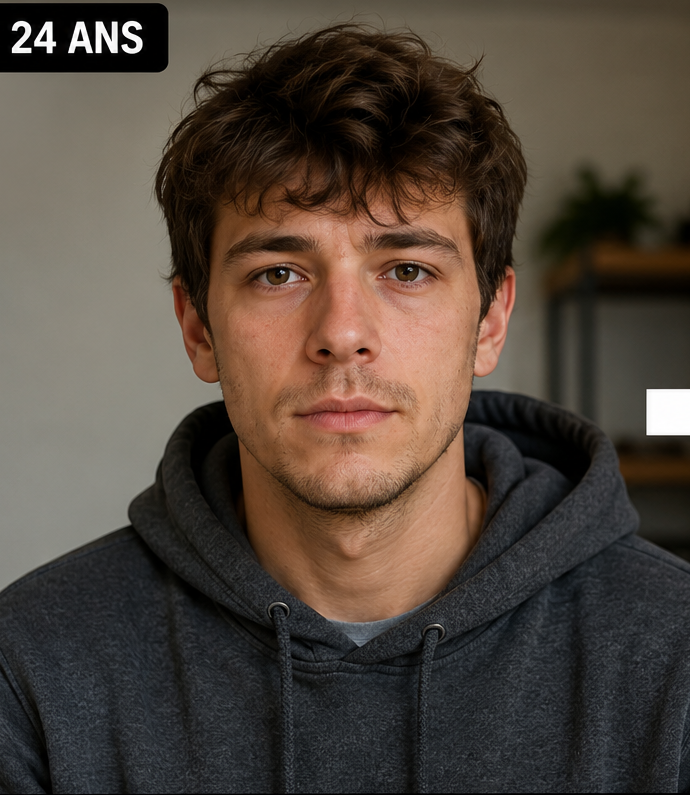
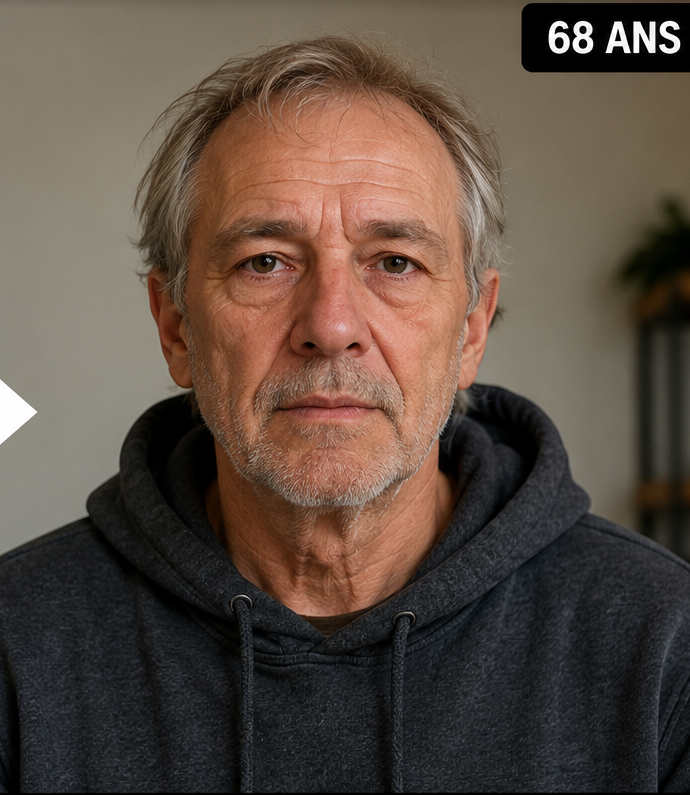
Review before and after
Check identity continuity as well as the strength of the aging effect.
AI aging filter vs traditional photo filter
A traditional filter is usually a fixed visual effect applied on top of an image. A generative aging tool can rebuild parts of the portrait to create a more substantial age transformation. That extra flexibility is useful, but it also means the model can change details you did not ask it to change.
That is why generative results should be reviewed carefully. The best output is not necessarily the one with the most wrinkles; it is the one where age changes are visible while the underlying person remains convincing.
How to get a cleaner aging-filter result
Use a sharp front-facing or slightly angled portrait. Keep the eyes and mouth unobstructed. Avoid sunglasses, masks, heavy motion blur and extreme beauty filters. If the photo has strong directional lighting, the generated image may also change shadows in ways that make comparison harder.
For an age timeline, keep the same source image and vary only the target age. This makes the result easier to compare and reduces unnecessary visual variables.
Use AI aging images responsibly
An aging filter can be fun, emotional or useful for creative content, but the image should not be presented as proof of how someone will really look. If you use another person’s portrait, make sure you have the right and appropriate consent to edit and publish it.
For public posts, a simple label such as “AI age progression” makes the context clear and avoids confusing a generated future portrait with an authentic photograph.
Questions people ask about this AI age preview
Is the AI aging filter online?
Yes. The demo and full Web App run in a browser, and a Windows version is also available.
Can I choose the exact target age?
Yes. You can select target ages up to 100.
Is the first aging result free?
The free demo provides one limited watermarked preview without an account.
Does the filter make me younger too?
Face Aging Studio is focused on age progression toward selected future ages. This page is specifically about older-age transformations.
Why should I check identity consistency?
Generative models can produce realistic images that subtly change facial structure. Compare the output with the source to make sure it still looks like the same person.