How to age yourself online in three steps
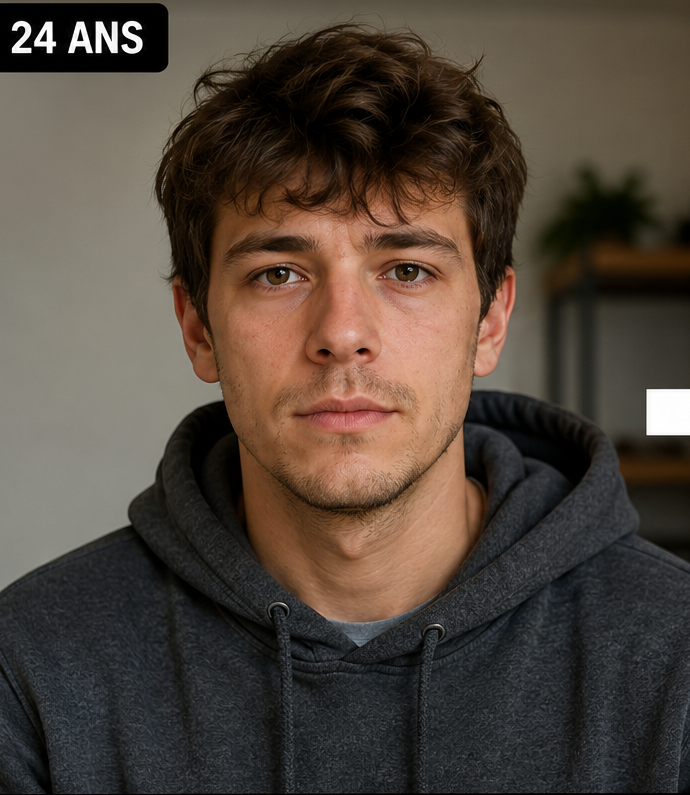
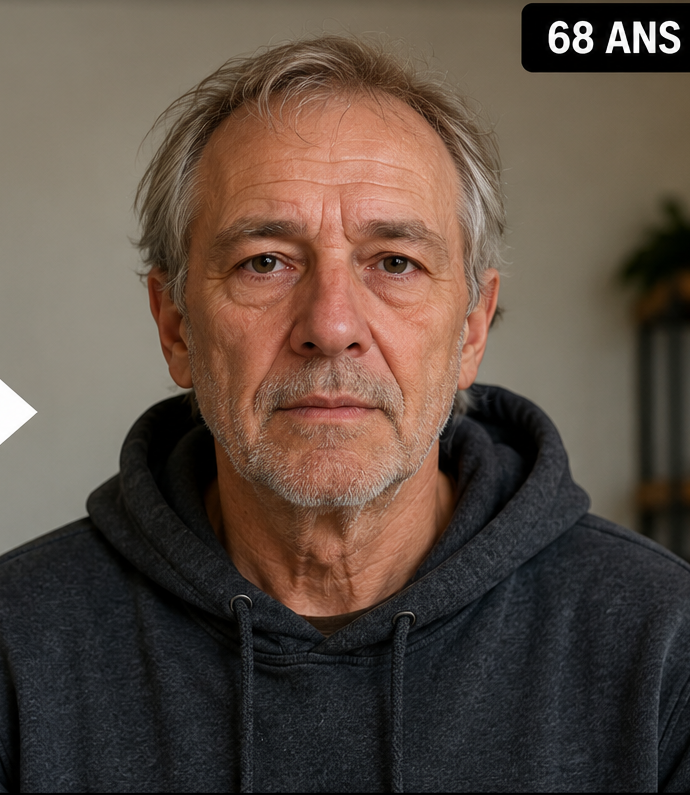
Open the free demo and choose a portrait where your face is easy to see. Select a target age such as 60, 80 or 90, then generate the preview. The first demo does not require an account and produces one limited watermarked result.
If you want additional ages, the full Web App lets you keep using the same Face Aging Studio account and credit balance. Each generated target age uses one credit.
1
Choose your photo
Use one clear face and avoid heavy filters.
2
Choose your future age
Pick the age that answers your question.
3
Generate and compare
Review the result next to the original before deciding whether to keep it.
What photo should you use?
The ideal input is not necessarily a professional portrait. A normal phone photo can work well if the face is sharp, reasonably large in the frame and evenly lit. The model needs to see the identity it is supposed to preserve.
Avoid group images when your goal is to age one person. Also avoid strong sunglasses, masks, hands covering the face, extreme side profiles and aggressive beauty filters that have already changed facial proportions.
Choose a target age instead of “make me old”
A specific target gives the transformation a clearer goal. Age 60 usually produces a more moderate preview, age 80 creates a stronger long-range change, and age 90 is a more extreme generative interpretation.
If you are not sure which one you want, generate a small sequence from the same source photo. Comparing ages is often more informative than trying to choose one “best” old-age image.
How to tell whether the AI kept your identity
Before looking at wrinkles or grey hair, compare the facial structure. Ask whether the eyes still sit in the same relationship to the nose, whether the mouth and chin feel familiar, and whether the jaw and cheek proportions still belong to you.
If those relationships change too much, the image may look realistic but not personal. That is identity drift. A second generation from the same clear photo can produce a better balance.
Use your aged portrait as creative media, not evidence
An AI-aged photo can be used for personal curiosity, a social before-and-after, a family conversation or a creative timeline. It should not be used to prove someone’s age or future appearance.
When you publish the image, clear context helps. “AI-generated age progression” is a more accurate description than claiming the image shows exactly how you will look in the future.
Questions people ask about this AI age preview
Can I age myself from a selfie?
Yes. A clear selfie with one visible face can be used as the source photo.
Do I need photo-editing skills?
No. You upload the portrait and choose the target age; the AI performs the transformation.
What ages can I choose?
Face Aging Studio supports target ages up to 100.
Can I try before buying credits?
Yes. There is one limited free demo preview with a watermark.
Can I create a timeline from the same photo?
Yes. Generate several target ages from the same source portrait for a more consistent comparison.